
Eventhough principal.totalmilk.com works on most browser, we recommend that you use google chrome when browsing principal portal.
Reasons Why You Should Choose Google Chrome Over Other Browsers
How to install chrome:
https://support.google.com/chrome/answer/95346?co=GENIE.Platform%3DDesktop&hl=en-GB
For windows:
- Download the installer file.
https://www.google.com/chrome/browser/desktop/index.html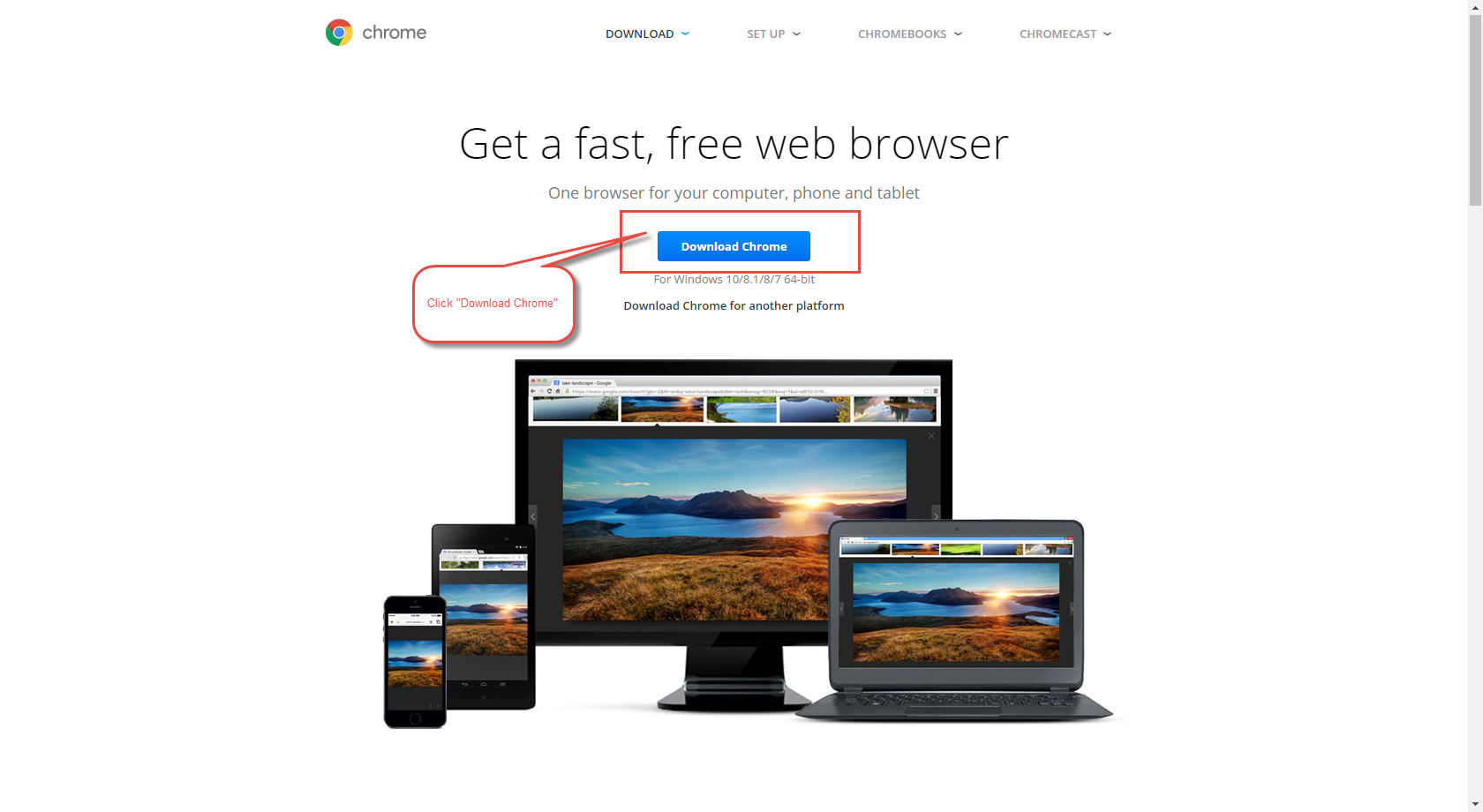
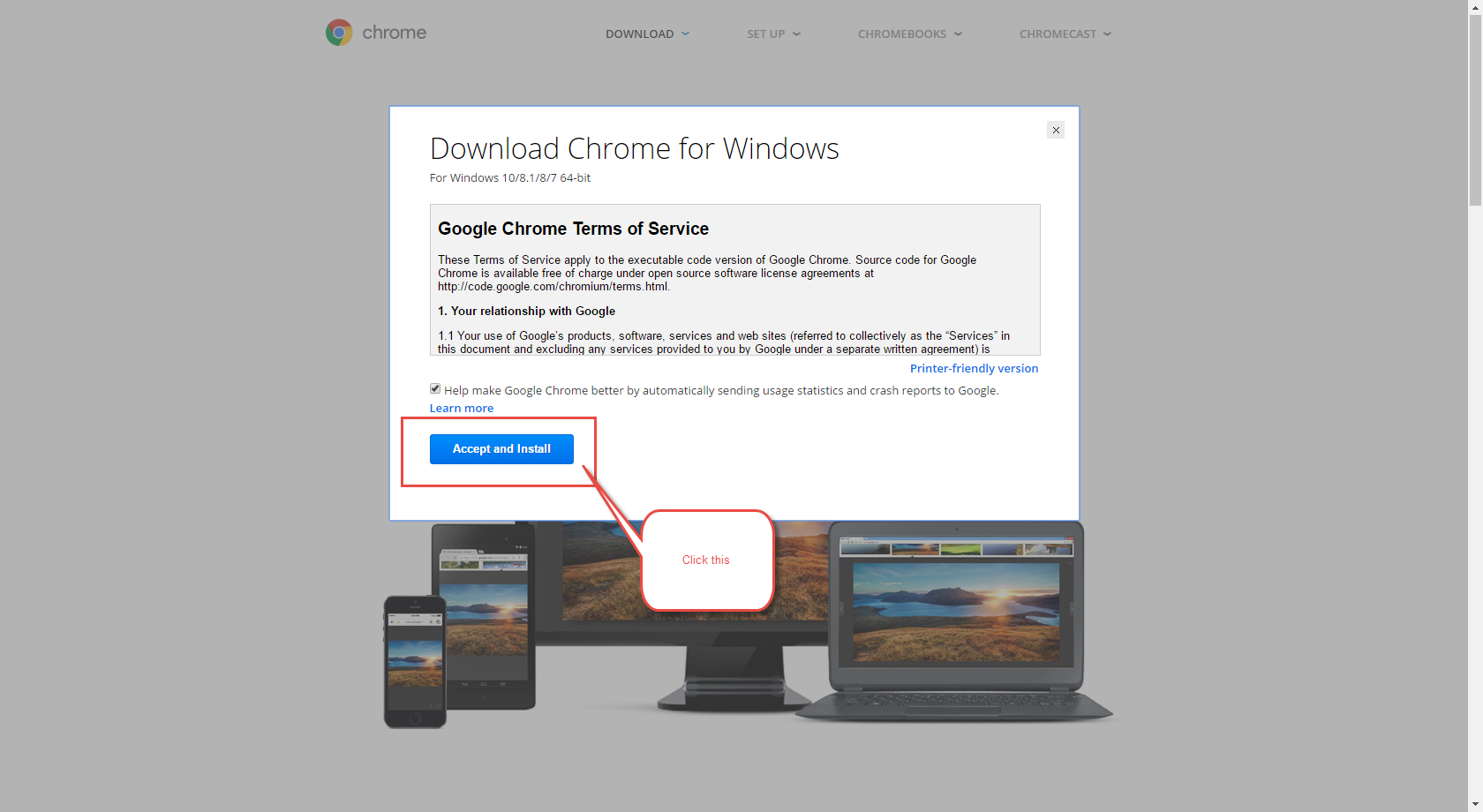
- If prompted, click Run or Save.
- If you chose Save, double-click the installer file to start the installation process. We'll automatically import your home page settings and browser history for you.
- Start Chrome:
- Windows 7: A Chrome window opens once everything is set up.
- Windows 8 and 8.1: A welcome dialogue appears, click Next to select your default browser.
- Windows 10: A Chrome window opens once everything is set up.
For Mac
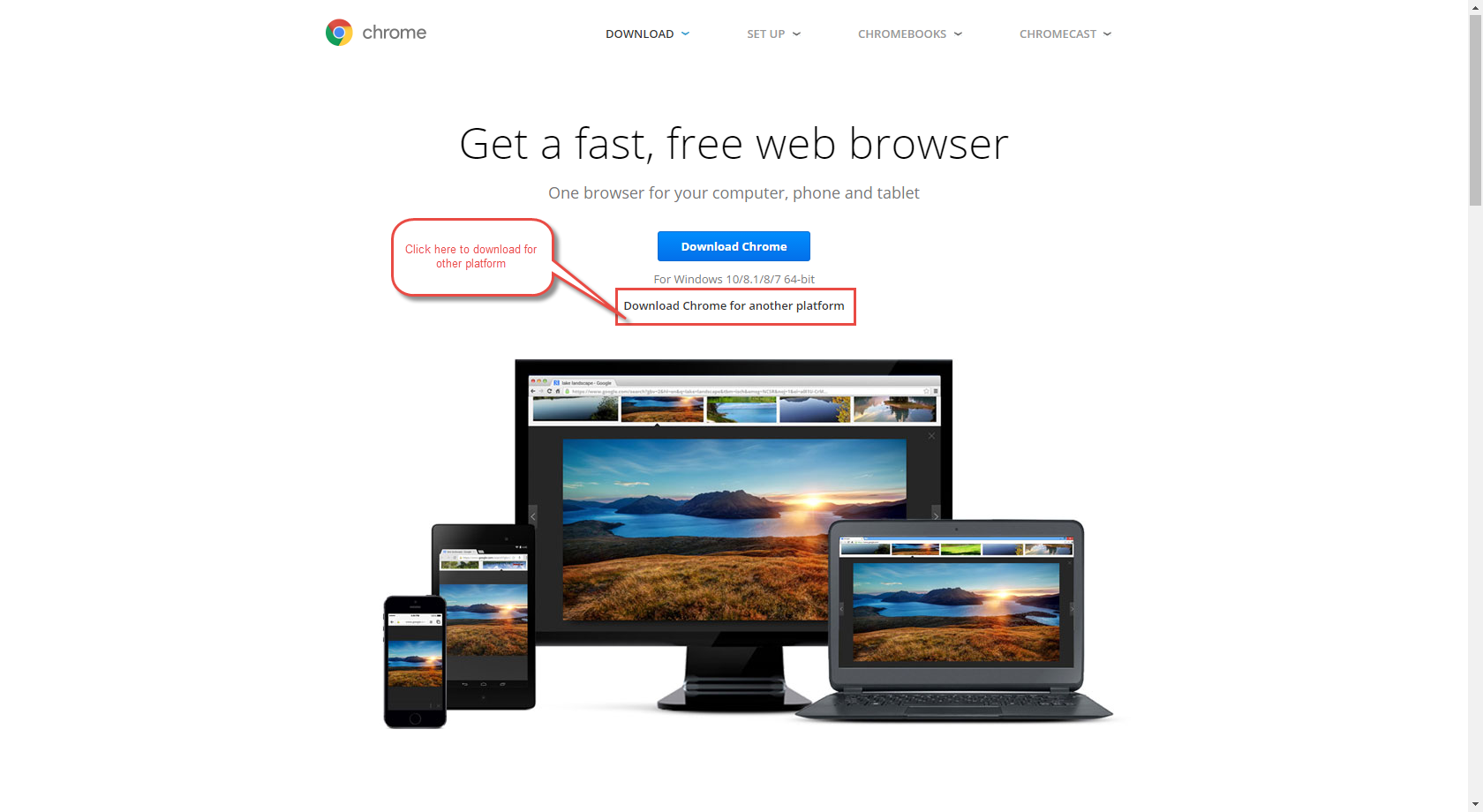
- Download the disk image.
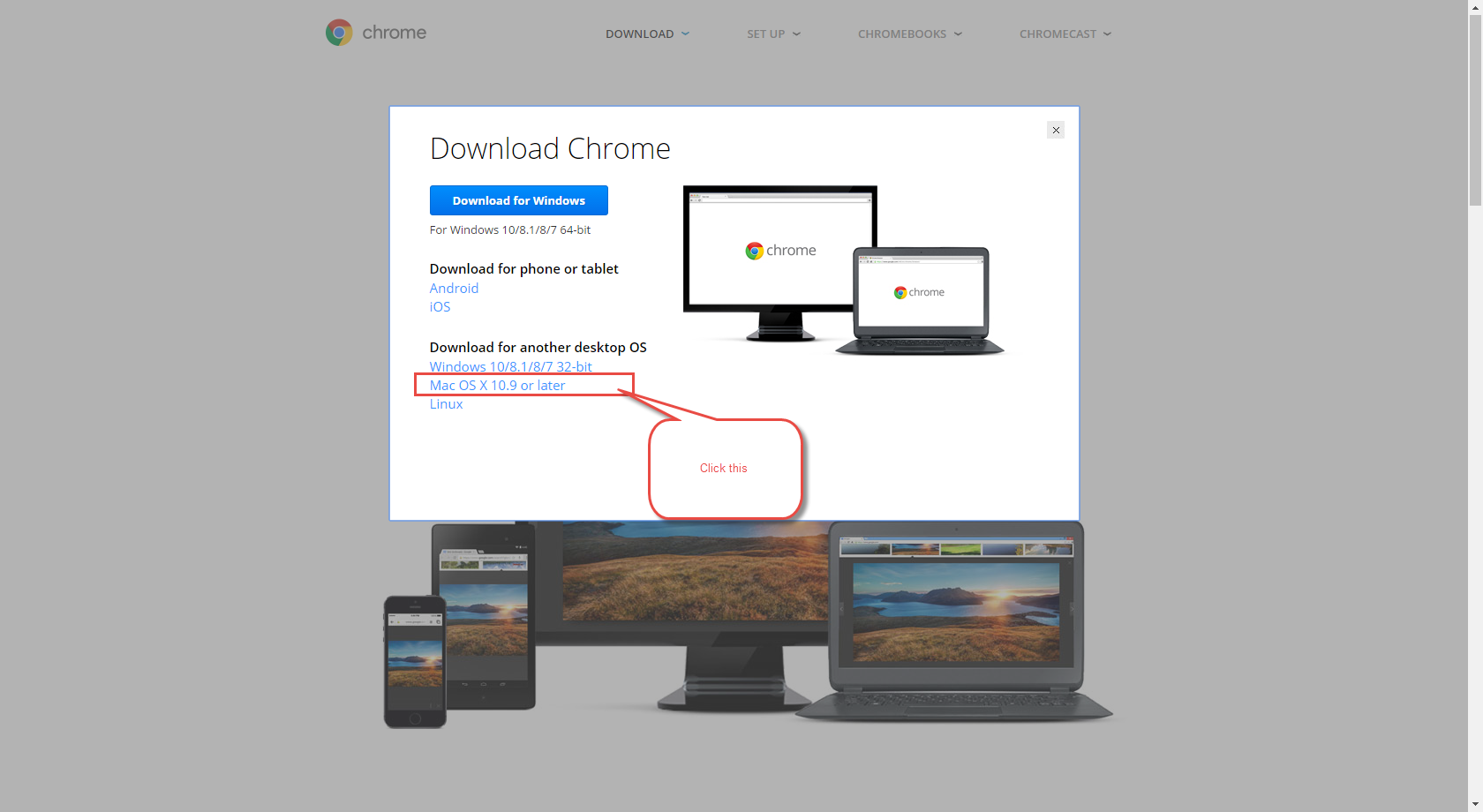
- Open the file called "Google Chrome.dmg".
- In the window that opens, find the Chrome icon
. Drag it to the Applications folder. If you don't have administrative rights, you'll be asked to authenticate. If you're not able to authenticate, drag the icon to a location on your computer where you do have rights, such as your desktop.
- Open Chrome. We'll automatically import your home page settings and browser history for you.
- Open Finder.
- In the window's sidebar, to the right of Google Chrome, click Eject
.
Comments
0 comments
Please sign in to leave a comment.